I use my iPad a lot, and it will do almost anything a Mac can do, but those things are almost always easier on a Mac with a keyboard and a trackpad. The iPad's interface is made to work with fingers, instead, and so it has to work differently, which I think makes lots of sense. I really don't think you need some sort of 3rd Party "File Manager" to do normal stuff on an iPad. For instance:
Peter Marsh wrote:…You can’t…
Import images
As you say, the "Imports" view shows pictures that have already been imported-- but they had to get in there someway, didn't they? So you can infer that, "You can’t Import images" must be a bit harsh!
If I plug in an SD card and reader, or a hard drive into the C port on my iPad and go to the Files app (makes sense, no?) I can open the iPad files, my iCloud Drive files, or my "Crucial" files. Tapping the latter, I see the directory of my drive.
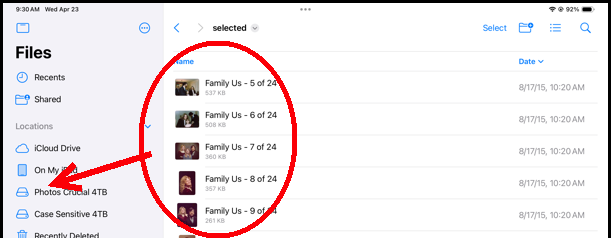
When I tap on a Folder I might see other folders, and I navigate to some picture files, just like any directory. I can tap on the "Select" button at upper right, and slide my finger over the check circles. Then I tap on the Share button on the bottom to bring up the Share menu with the choice "Save Files."
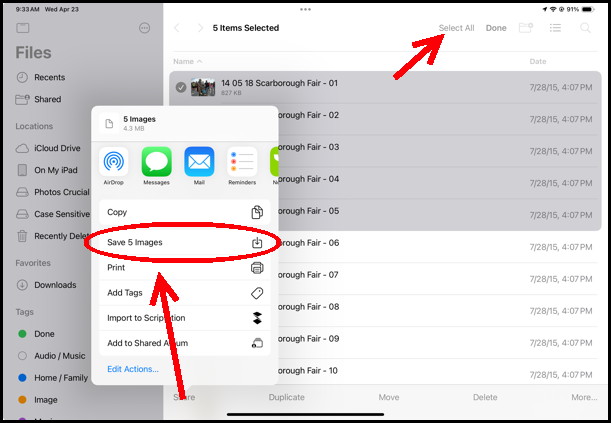
If I tap that, and then go to Photos "Utilities>Recently Saved" I can see the pictures are now in Photos.
So, on an iPad you don't choose "Import" from a menu and then navigate to the files. Rather you find and select the files and say Import (or rather, "Save.") But it seems easy and perfectly straight forward, once you get that it's a bit backward from a Menu system. And you certainly don't need an extra File Manipulator app.
Peter Marsh wrote:…You can’t…
Export Images
Exporting is "Save to Files." You select a picture in Photos, choose Share, and "Save to Files."
Peter Marsh wrote:…You can’t…
Edit images
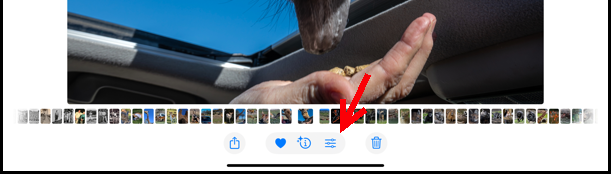
Tap on a picture to open it, and tap on the Edit button at the bottom. This doesn't say Edit, but it looks like this:

which reminds you of the adjustments on a Mac and other editors:
That gets you to the edit tools:
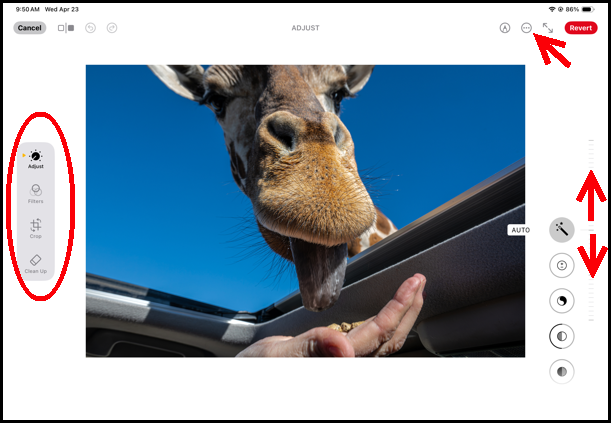
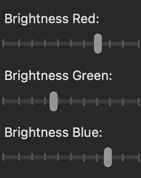
Just like on a Mac, you get Adjust, Filters, Crop, and Clean Up (from Apple Intelligence.) The actual adjustments have vertical sliders on the right. And don't' forget the (•••) More button up top.
Peter Marsh wrote:…You can’t…
Delete Images
Select a picture and tap the trash can.
Really, everything is pretty intuitive-- you just let your fingers do the walking…