Numbers, unable to use the sum formula to calculate total

Im not sure if I will be able to explain it clearly, but before, I would input data, then use the sum formula to calculate the total number. Now I have a problem that I never saw before, I think I updated numbers then this came across I think. Hope the images are self explatory because I can't figure it out


when you select one cell its fine, but when you select multiple cells problems begin.


this is what I end up with. I deleted B1707:B1723 but that didn't solve the problem.


I emptied the cells, repasted them into a new table input the data again etc but no luck. I don't know what I am supposed to do or what I have done to cause this problem. It seem to affect only certain cells...?


If you know the solution please provide a simple step by step.


Thank you in advance.


Claire


[Edited by Moderator]

Posted on Jul 5, 2025 9:56 AM

Reply
Question marked as Top-ranking reply

Posted on Jul 7, 2025 10:46 AM

> I finally figured it out, I stupidly thought that if you input the equal symbol into a cell, that would automatically be a sum formula


No. Actually, that might have been the case a while ago, but since Numbers added support for arrays it's no longer the case.


Consider the following example with a simple table of names and numbers:
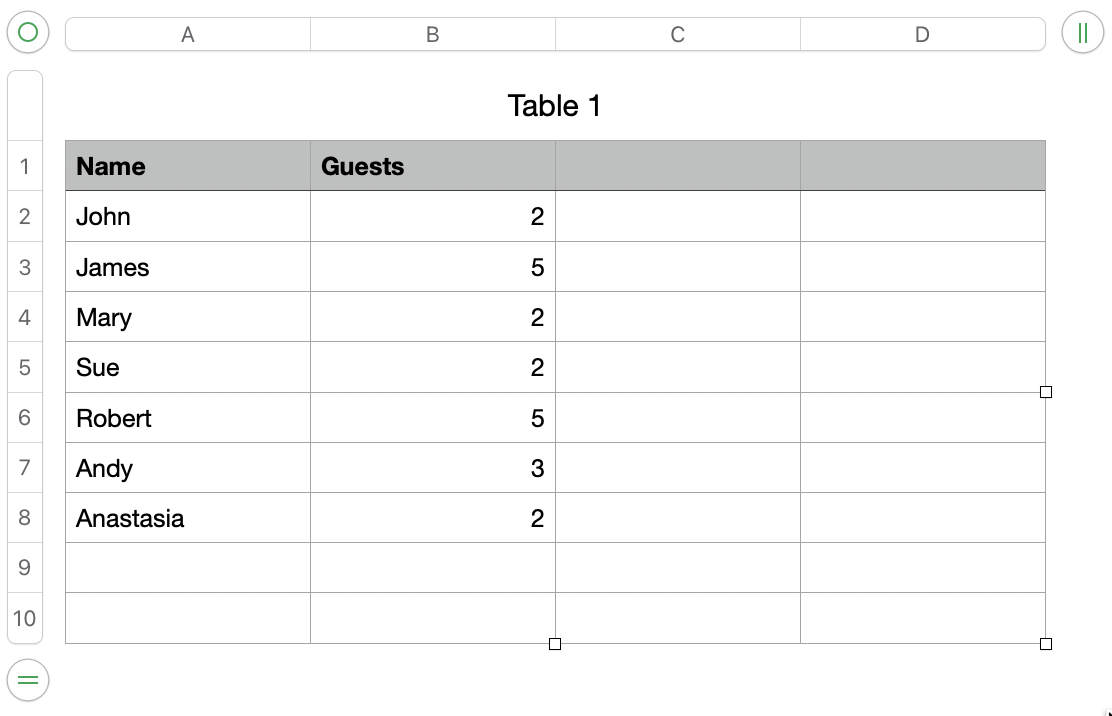


If I select the cell C2 and enter the formula:


=B2:B8


Numbers reads this as me wanting to copy those cells over, so you end up with:
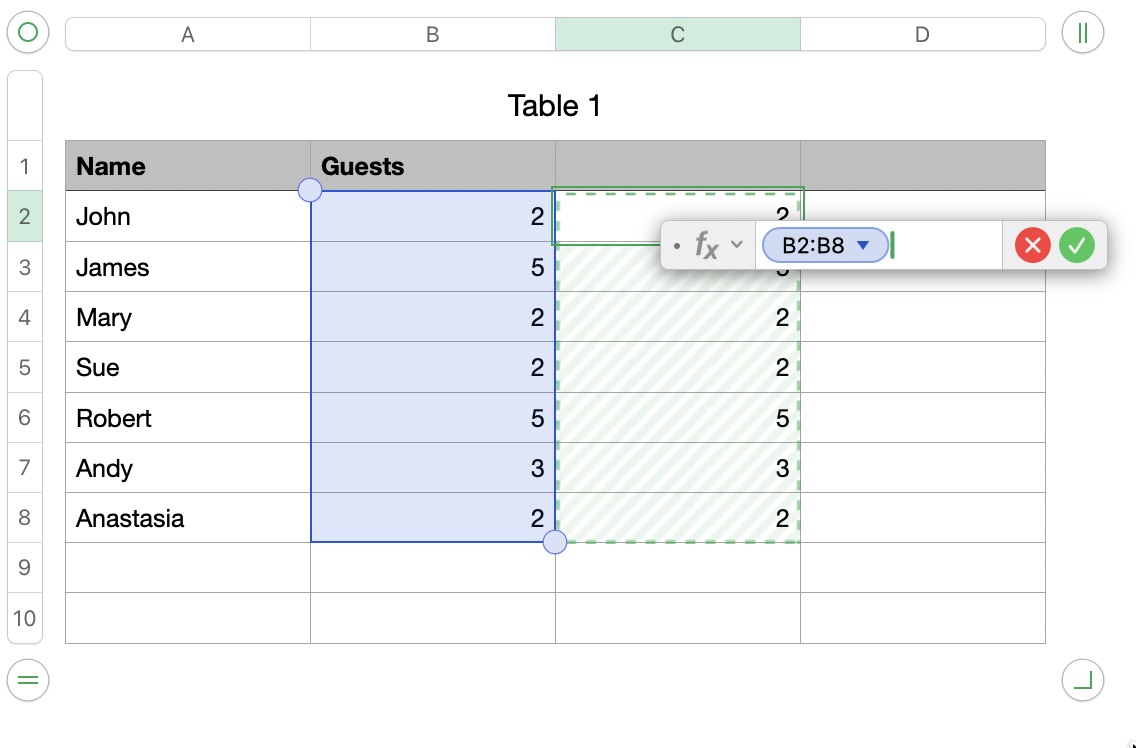


where it's copying the range of cells B2:B8 into C2.

Since the source B2:B8 is 7 cells, this causes the result to 'spill' over into the cells immediately below C2. These are highlighted with a green hashed background to indicate they are calculated as the result of a spillover, rather than a direct reference.


The problem you're seeing in your original screenshot is related to this - it's trying to copy a block of cells from the source (D1690:D1706) and spill into the adjacent cells. Your situation is complicated by the fact you have merged cells, so the error message highlights that, rather than the fact you probably don't want to spill the results. If the range didn't have merged cells you'd have probably seen a different error that it couldn't spill the results because the adjacent cells weren't empty.


In either case, adding SUM() makes it clear to Numbers that you want the sum of that range of cells, not a copy of them all.


Incidentally, if you select the cell (C2 in my example), and press = you get the formula editor pop up. If you click and drag over a series of cells (e.g. B2:B8), Numbers will insert the SUM() for you as a logical/likely intent, so it's really only an issue you type a second = (one to initiate the formula editor, then another to indicate that you really want the other cell range, rather than some other function (such as SUM()).


7 replies
Question marked as Top-ranking reply

Jul 7, 2025 10:46 AM in response to clairemissy

> I finally figured it out, I stupidly thought that if you input the equal symbol into a cell, that would automatically be a sum formula


No. Actually, that might have been the case a while ago, but since Numbers added support for arrays it's no longer the case.


Consider the following example with a simple table of names and numbers:


If I select the cell C2 and enter the formula:


=B2:B8


Numbers reads this as me wanting to copy those cells over, so you end up with:


where it's copying the range of cells B2:B8 into C2.

Since the source B2:B8 is 7 cells, this causes the result to 'spill' over into the cells immediately below C2. These are highlighted with a green hashed background to indicate they are calculated as the result of a spillover, rather than a direct reference.


The problem you're seeing in your original screenshot is related to this - it's trying to copy a block of cells from the source (D1690:D1706) and spill into the adjacent cells. Your situation is complicated by the fact you have merged cells, so the error message highlights that, rather than the fact you probably don't want to spill the results. If the range didn't have merged cells you'd have probably seen a different error that it couldn't spill the results because the adjacent cells weren't empty.


In either case, adding SUM() makes it clear to Numbers that you want the sum of that range of cells, not a copy of them all.


Incidentally, if you select the cell (C2 in my example), and press = you get the formula editor pop up. If you click and drag over a series of cells (e.g. B2:B8), Numbers will insert the SUM() for you as a logical/likely intent, so it's really only an issue you type a second = (one to initiate the formula editor, then another to indicate that you really want the other cell range, rather than some other function (such as SUM()).

Jul 5, 2025 10:48 AM in response to clairemissy

It took me a while, but I finally figured it out, I stupidly thought that if you input the equal symbol into a cell, that would automatically be a sum formula, I tried again deleting cells and such but the problem I was having was still there. I selected the cell that I wanted the function/sum formula to go into, then went into format- and there the problem was caused by a different formula being selected on the function page which was ABS (whatever that means.) I don't remember selecting that function, so I selected SUM and it finally works.

I thought I would post this in case anyone else came across this. Just make sure you have the right function selected. :-)


Happy days!


Claire.

Jul 6, 2025 12:16 AM in response to clairemissy

Hi Claire,

clairemissy wrote:

I thought I would post this in case anyone else came across this. Just make sure you have the right function selected. :-)
Claire

Good job! Upvote for you!


The only way that I know of to automatically show the sum (and other statistics) of selected cells is at the bottom of the Numbers window:


Otherwise, Numbers needs a function in a formula in a cell.


Regards,

Ian.

Jul 5, 2025 11:53 AM in response to clairemissy

Continuing on this thread, the problem was also caused by the fact that the sum function was not working automatically as it used to do I don't know what stopped this from working automatically but a workaround is just selecting SUM in the function page in the format sidebar. If anyone knows how I could get the SUM function to work automatically again I would be grateful.


Thanks


Claire

Jul 8, 2025 12:42 PM in response to clairemissy

I am using version 14.4 and if I type an = (to bring up the formula editor) then select a range of cells, it automatically puts the SUM formula around it and all I have to do next is hit Return. I do not have to choose SUM from the bottom of the window or type it in, it automatically puts it in the formula. Same thing with earlier versions.

Jul 8, 2025 7:46 PM in response to Johne154

Johne154 wrote:

Thanks, Ian. I've been using Numbers in iPad for the last 5 years and I'm sure it didn't have those sums, averages, etc., at the bottom of the sheet or screen.


They've been there for about 10 years now. But they only appear when you select cells in a table.


Note that you can drag one into a cell. The underlying formula will then be inserted in that cell.


Quickly calculate a sum, average, and more in Numbers on Mac - Apple Support


SG


This thread has been closed by the system or the community team. You may vote for any posts you find helpful, or search the Community for additional answers.

Numbers, unable to use the sum formula to calculate total

Welcome to Apple Support Community
A forum where Apple customers help each other with their products. Get started with your Apple Account.