Linear trendline -- number of decimals on equation in 2023

When fitting a linear trendline in a scatter diagra, it is possible to display the equation in the format y = ax + b. For a sufficiently complex equation, the number of displayed decimals of a and b are four. I cannot find a way to set the number of decimal (to e g a higher number of decimal). Is that possible?


This question was answered in 2014 but the options mentioned do not seem to still be available.


iPhone 8, iOS 12

Posted on Aug 9, 2023 9:24 AM

Reply
Question marked as Top-ranking reply

Posted on Aug 10, 2023 9:15 AM

I experimented with the Scatter Chart sheet in the 'Charting Basics' template at File > New in the menu and got this (after shortening the data table name to 'Data'):
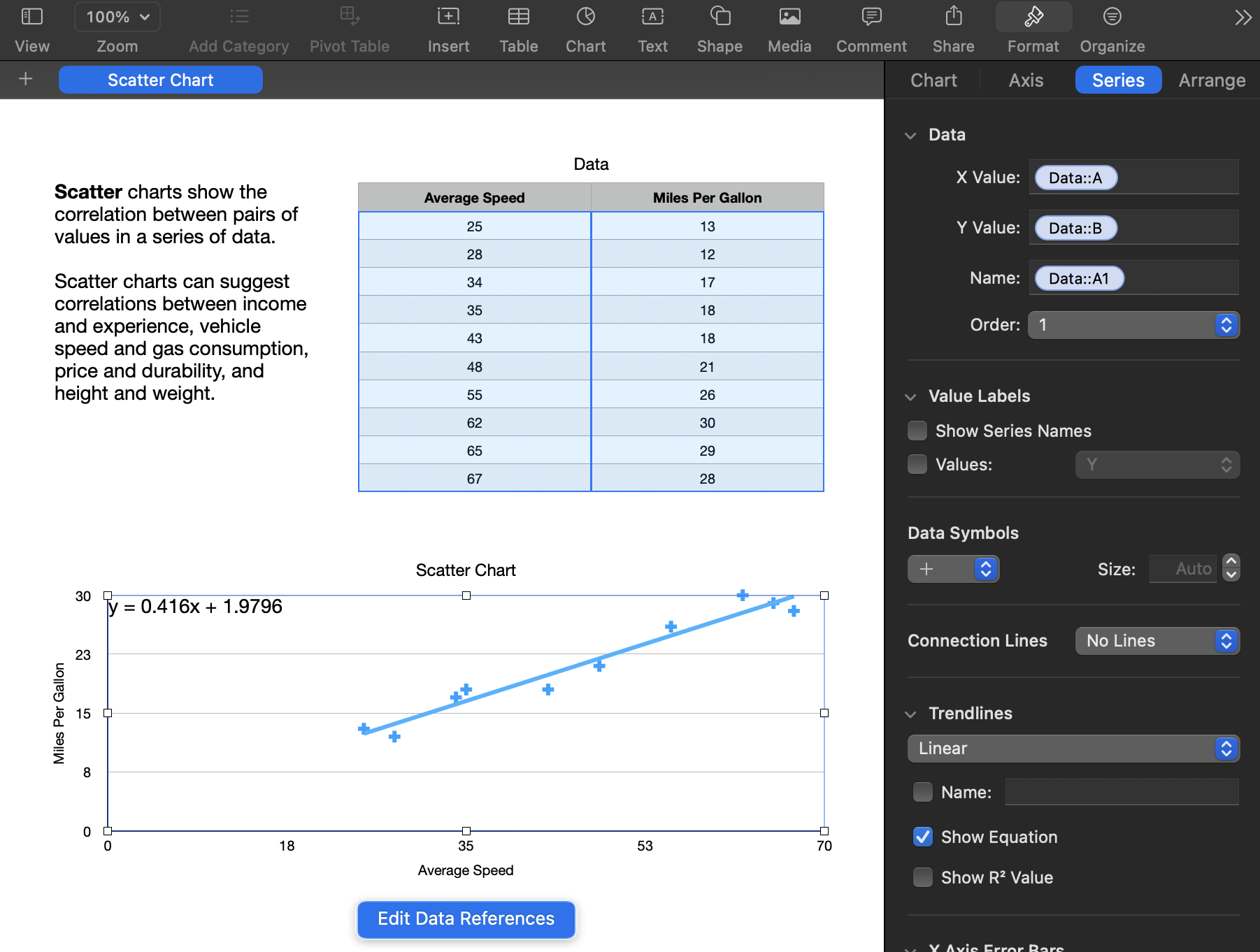


I was able to change the size and font of the displayed equation but couldn't change the number of displayed decimals or move the equation to another position.


But by unchecking the Show Equation box and calculating the values in a table, removing the borders to the table, hiding columns, and drawing the table onto the chart, I was able to produce this:
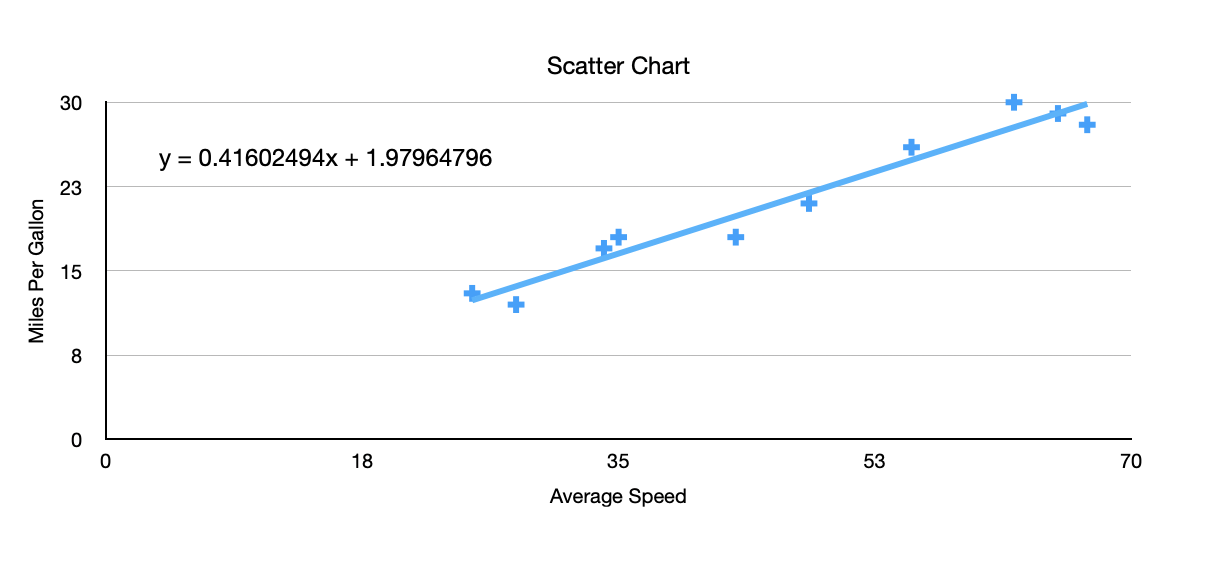


The trick was to use the LINEST function that Ian suggested. I used it like this:
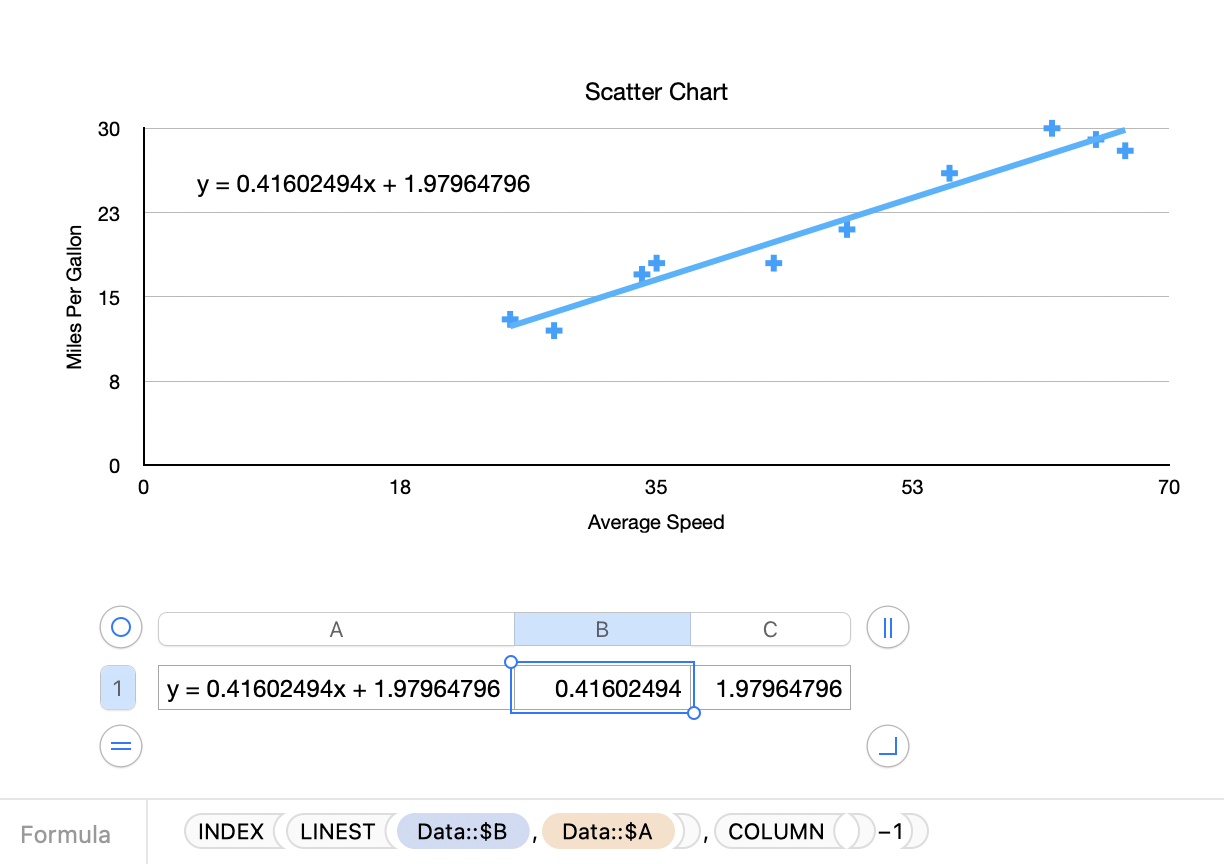


In B1, filled to right to C1:


=INDEX(LINEST(Data::$B,Data::$A),COLUMN()−1)


In A1, to concatenate the values for display on the chart:


="y = "&B1 & "x"&" + "&C1


I formatted the cells in B and C to the number of decimal places I wanted, hid columns B and C, turned off the table Title, and removed the border. Then I dragged the table onto the chart by clicking the concentric circles "bulls-eye" to its upper left.


This isn't too much work (now that I know what needs to be done!), but the automatically generated equation would actually be useful if it could be adjusted and positioned. You might want to consider leaving feedback with Apple at Numbers > Provide Numbers Feedback in the menu.


SG

4 replies
Question marked as Top-ranking reply

Aug 10, 2023 9:15 AM in response to Seamefly

I experimented with the Scatter Chart sheet in the 'Charting Basics' template at File > New in the menu and got this (after shortening the data table name to 'Data'):


I was able to change the size and font of the displayed equation but couldn't change the number of displayed decimals or move the equation to another position.


But by unchecking the Show Equation box and calculating the values in a table, removing the borders to the table, hiding columns, and drawing the table onto the chart, I was able to produce this:


The trick was to use the LINEST function that Ian suggested. I used it like this:


In B1, filled to right to C1:


=INDEX(LINEST(Data::$B,Data::$A),COLUMN()−1)


In A1, to concatenate the values for display on the chart:


="y = "&B1 & "x"&" + "&C1


I formatted the cells in B and C to the number of decimal places I wanted, hid columns B and C, turned off the table Title, and removed the border. Then I dragged the table onto the chart by clicking the concentric circles "bulls-eye" to its upper left.


This isn't too much work (now that I know what needs to be done!), but the automatically generated equation would actually be useful if it could be adjusted and positioned. You might want to consider leaving feedback with Apple at Numbers > Provide Numbers Feedback in the menu.


SG

Aug 10, 2023 10:28 AM in response to SGIII

I couldn't follow this information.


But by unchecking the Show Equation box and calculating the values in a table, removing the borders to the table, hiding columns, and drawing the table onto the chart, I was able to produce this:


However, I was able to follow:


Working under the premise that the generic formula for linear regression line is written as y=mx+b; your advice provided me with the equations m-value when I place the above formula into B12. However, your post didn't seem to tell me how to get the b-value. Maybe it does and it is just my brain not processing the information. So I started playing around and entered the formula from B12 and into C12 and it gave me the b-value!


I adjusted for decimals and put the following in A12 and even got numbers to display the put together equation.


="y = "&B1 & "x"&" + "&C1


Thank you!

Aug 9, 2023 8:11 PM in response to Seamefly

Hi Seamefly,


The function LINEST will return the intercept and slope of a linear trendline.

That creates an array and we must use the function INDEX to display the values.

More here:

LINEST – Apple Support (AU)


However, when I followed that advice, I was confused. Either that advice has the method bass akward (X and Y reversed) or I have it bass akward.


Please wait for other users to reply. I could be wrong (and I am often wrong).


Regards,

Ian.


This thread has been closed by the system or the community team. You may vote for any posts you find helpful, or search the Community for additional answers.

Linear trendline -- number of decimals on equation in 2023

Welcome to Apple Support Community
A forum where Apple customers help each other with their products. Get started with your Apple Account.