Cant import to photos library on an external drive

while trying to import from the camera card to mac photos where the photos library is on an external drive i get the import error - "there was an error attempting to free up disk space for import". there is more than 1.5 Tera free and i cant import even a single JPG image

MacBook Pro 16″, macOS 14.5

Posted on Aug 30, 2024 2:39 PM

Reply
Question marked as Top-ranking reply

Posted on Aug 30, 2024 3:41 PM

It sounds like it may be that the Library isn't working on your drive. And how is your external drive formatted? To avoid damaging the Photos Library an external drive must be formatted in either APFS format or Mac OS Extended (Journaled) format. Additionally, the drive can not have had Time Machine on it since it was formatted. There have been so many problems with using incompatible drives that the newest macOSs won't even allow a Library on a non-Mac formatted drive to open, since there is a chance of damaging the Photos database. See this:

Move your Photos library to save space on your Mac - Apple Support


You might also want to check the permissions for your drive, if you're sure it's properly formatted.  This is not usually a problem, but it sometimes comes up. 


Click on the drive icon, and open the Info window with command-i. Go to the bottom:
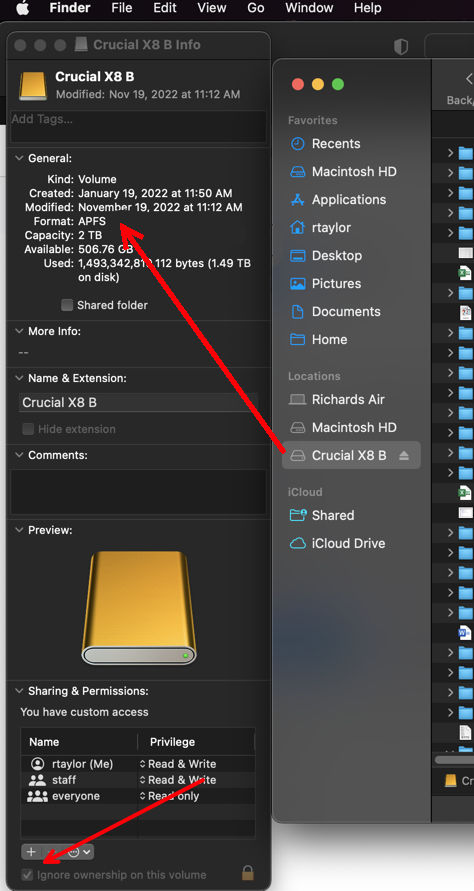

If “Ignore Ownership” is there, then it should be checked. It is normally checked when it's formatted.



Similar questions

5 replies
Question marked as Top-ranking reply

Aug 30, 2024 3:41 PM in response to barakhz

It sounds like it may be that the Library isn't working on your drive. And how is your external drive formatted? To avoid damaging the Photos Library an external drive must be formatted in either APFS format or Mac OS Extended (Journaled) format. Additionally, the drive can not have had Time Machine on it since it was formatted. There have been so many problems with using incompatible drives that the newest macOSs won't even allow a Library on a non-Mac formatted drive to open, since there is a chance of damaging the Photos database. See this:

Move your Photos library to save space on your Mac - Apple Support


You might also want to check the permissions for your drive, if you're sure it's properly formatted.  This is not usually a problem, but it sometimes comes up. 


Click on the drive icon, and open the Info window with command-i. Go to the bottom:


If “Ignore Ownership” is there, then it should be checked. It is normally checked when it's formatted.


Sep 11, 2024 6:58 AM in response to MusicalMoments

MusicalMoments wrote: ... formatted in Mac OS Extended (Case-sensitive, Journaled). The

I want to agree with léonie that Case-sensitive is asking for trouble. I have a couple of volumes that I've formatted as case-sensitive to accommodate some old picture files from different cameras that used similar names, but some used caps and others didn't. It's always been a pain dealing with those volumes and files-- as much as I could I converted files using GraphicConverter ($40) so that I could move the files to a normal volume. But even that was painful.


I think that in anyway you can you should get away from the case-sensitive volume. Luckily, Photos renames picture files with unique file names, so the Library may survive. If you have lots of room on your drive, you may be able to partition it to get a new volume. If there's not enough room, you may need a new drive. An SSD should be formatted in APFS, and an APFS drive can be "partitioned" into volumes whose size can vary dynamically. That's very cool.

Add, delete, or erase APFS volumes in Disk Utility on Mac - Apple Support


Sep 11, 2024 12:27 AM in response to barakhz

I've also had this problem, since yesterday. I have Photos on my external HD, Seagate One Touch, capacity 4 TB, free space 2.44 TB, formatted in Mac OS Extended (Case-sensitive, Journaled). The Ignore Ownership box is checked. (My Time Machine is on a separate drive.) I have always been able to successfully import the photos from Downloads to Photos on this external drive until yesterday morning when it all of sudden stopped working with this message being displayed, "There was an error attempting to free up disk space for import." I've tried Force Quit Photos & hard reset my Mac (M2 Pro, Version 14.6.1). But nothing worked.

This thread has been closed by the system or the community team. You may vote for any posts you find helpful, or search the Community for additional answers.

Cant import to photos library on an external drive

Welcome to Apple Support Community
A forum where Apple customers help each other with their products. Get started with your Apple Account.