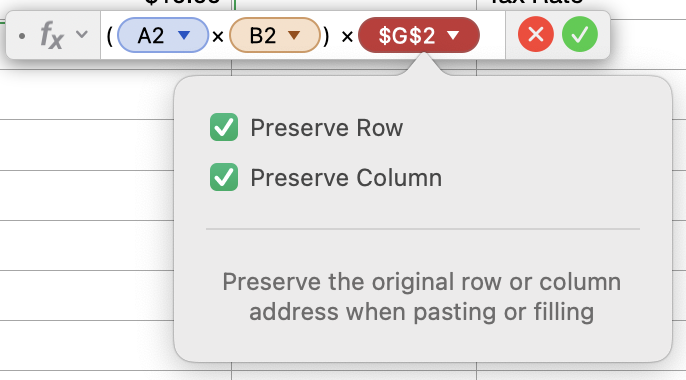
The $ means absolute, vs relative addressing.
I know that doesn't say a lot, but it can be very useful.
By default, Numbers uses relative addresses. That means that formulas really calculate offsets when referencing other cells.
For example, take the table:
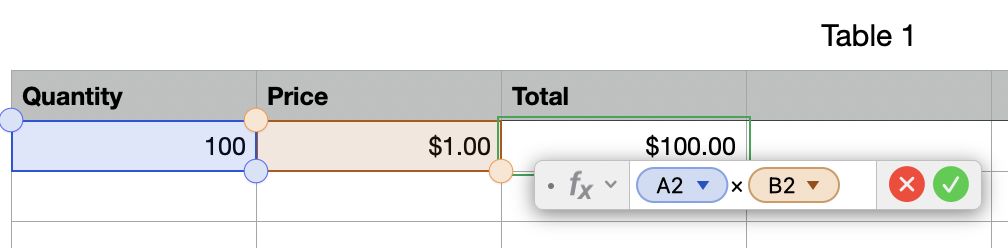
Makes sense, right - Cell C2 is calculated as A2 x B2 (quantity * price).
Now, relative addresses mean that, internally, Numbers thinks of cell C2 as being 'the cell two to the left multiplied by the cell immediately to the left' - in other words, it thinks about how the component cells are relative to the current cell.
If if you fill the formula in cell C2 down, the relative addresses update to maintain the same relationship - so cell C3 would now reference A3 and B3 - two to the left, and immediately left, just like the original cell.
Likewise, if you filled right, the cell would update the references to maintain that same relative relationship
Often that's what you want when building tables.
Sometimes, though, you want to use specific cells and not have the formulas update
For example, let's say the earlier table now needs to calculate taxes:

Here you can see the cell G2 is being used to store the tax rate (ideally, I'd put static values like this in a separate table, but I'm just using this as an illustration)
Using relative addresses, cell D2 would reference G2 as 'three cells to the right', which is fine for row 2, but as you follow the column down, the subsequent rows would continue to use the same reference 'three cells to the right' and the calculations would break - cell D3 would look to cell G3 (three to the right) for the tax rate, but that's empty.
In this case, you want the formula to ALWAYS use G2, not update the references as the formula is filled out. For this, you use the $ sign.
Changing the D2 formula to:
=(A2 x B2) x $G$2
means that every cell down the column would continue to use absolute cell G2 for the tax rate, rather than the corresponding relative cell.
Note that either the row, or the column, or both can be absolute, based on your needs.
If you click the little triangle next to the cell reference in the formula, you get a little popup with options to 'preserve row' and 'preserve column', which are easy ways to add the $ reference: