iPad and iPhotos: Absent menus makes it difficult to use

Menus at the top of the screen are missing on my version of iPhotos and makes it difficult if not impossible to use. I would like to tell you what version I am using but can’t because the menu item doesn’t exist.


My main difficulty is being unable to import fresh images whether from the restricted iPhoto or iPad source or by navigating through the traditional directory structure.


Similarly I cannot export images again because the relevant menu item does not exist.


Please, Please Apple fix this oversight and make iPhotos powerful again on my iPad {my go-to device}.

Posted on Apr 22, 2025 5:56 AM

Reply
Question marked as Top-ranking reply

Posted on Apr 23, 2025 8:11 AM

I use my iPad a lot, and it will do almost anything a Mac can do, but those things are almost always easier on a Mac with a keyboard and a trackpad. The iPad's interface is made to work with fingers, instead, and so it has to work differently, which I think makes lots of sense. I really don't think you need some sort of 3rd Party "File Manager" to do normal stuff on an iPad. For instance:

Peter Marsh wrote:…You can’t…
Import images

As you say, the "Imports" view shows pictures that have already been imported-- but they had to get in there someway, didn't they? So you can infer that, "You can’t Import images" must be a bit harsh!


If I plug in an SD card and reader, or a hard drive into the C port on my iPad and go to the Files app (makes sense, no?) I can open the iPad files, my iCloud Drive files, or my "Crucial" files. Tapping the latter, I see the directory of my drive.
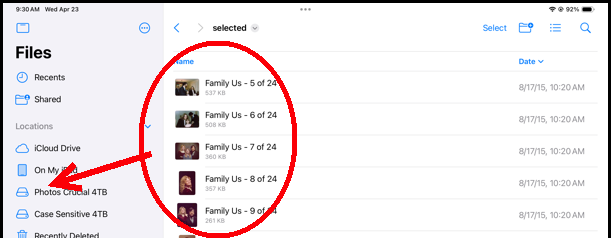

When I tap on a Folder I might see other folders, and I navigate to some picture files, just like any directory. I can tap on the "Select" button at upper right, and slide my finger over the check circles. Then I tap on the Share button on the bottom to bring up the Share menu with the choice "Save Files."
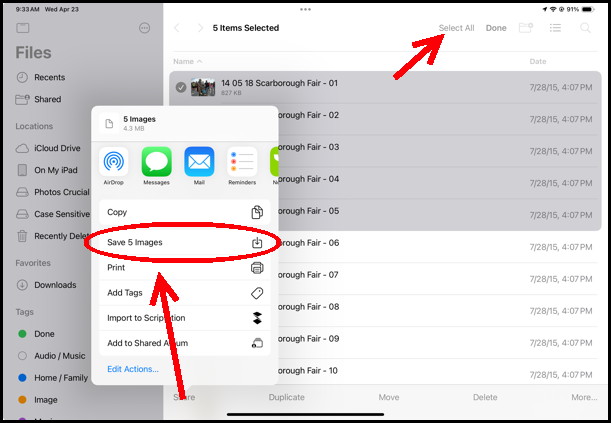
If I tap that, and then go to Photos "Utilities>Recently Saved" I can see the pictures are now in Photos.


So, on an iPad you don't choose "Import" from a menu and then navigate to the files. Rather you find and select the files and say Import (or rather, "Save.") But it seems easy and perfectly straight forward, once you get that it's a bit backward from a Menu system. And you certainly don't need an extra File Manipulator app.

Peter Marsh wrote:…You can’t…
Export Images

Exporting is "Save to Files." You select a picture in Photos, choose Share, and "Save to Files."


Peter Marsh wrote:…You can’t…
Edit images

Tap on a picture to open it, and tap on the Edit button at the bottom. This doesn't say Edit, but it looks like this:

which reminds you of the adjustments on a Mac and other editors:



That gets you to the edit tools:
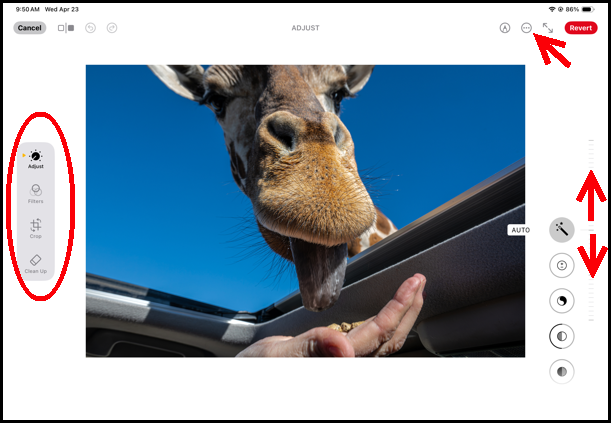

Just like on a Mac, you get Adjust, Filters, Crop, and Clean Up (from Apple Intelligence.) The actual adjustments have vertical sliders on the right. And don't' forget the (•••) More button up top.


Peter Marsh wrote:…You can’t…
Delete Images

Select a picture and tap the trash can.


Really, everything is pretty intuitive-- you just let your fingers do the walking…

9 replies
Question marked as Top-ranking reply

Apr 23, 2025 8:11 AM in response to Peter Marsh

I use my iPad a lot, and it will do almost anything a Mac can do, but those things are almost always easier on a Mac with a keyboard and a trackpad. The iPad's interface is made to work with fingers, instead, and so it has to work differently, which I think makes lots of sense. I really don't think you need some sort of 3rd Party "File Manager" to do normal stuff on an iPad. For instance:

Peter Marsh wrote:…You can’t…
Import images

As you say, the "Imports" view shows pictures that have already been imported-- but they had to get in there someway, didn't they? So you can infer that, "You can’t Import images" must be a bit harsh!


If I plug in an SD card and reader, or a hard drive into the C port on my iPad and go to the Files app (makes sense, no?) I can open the iPad files, my iCloud Drive files, or my "Crucial" files. Tapping the latter, I see the directory of my drive.


When I tap on a Folder I might see other folders, and I navigate to some picture files, just like any directory. I can tap on the "Select" button at upper right, and slide my finger over the check circles. Then I tap on the Share button on the bottom to bring up the Share menu with the choice "Save Files."

If I tap that, and then go to Photos "Utilities>Recently Saved" I can see the pictures are now in Photos.


So, on an iPad you don't choose "Import" from a menu and then navigate to the files. Rather you find and select the files and say Import (or rather, "Save.") But it seems easy and perfectly straight forward, once you get that it's a bit backward from a Menu system. And you certainly don't need an extra File Manipulator app.

Peter Marsh wrote:…You can’t…
Export Images

Exporting is "Save to Files." You select a picture in Photos, choose Share, and "Save to Files."


Peter Marsh wrote:…You can’t…
Edit images

Tap on a picture to open it, and tap on the Edit button at the bottom. This doesn't say Edit, but it looks like this:

which reminds you of the adjustments on a Mac and other editors:


That gets you to the edit tools:


Just like on a Mac, you get Adjust, Filters, Crop, and Clean Up (from Apple Intelligence.) The actual adjustments have vertical sliders on the right. And don't' forget the (•••) More button up top.


Peter Marsh wrote:…You can’t…
Delete Images

Select a picture and tap the trash can.


Really, everything is pretty intuitive-- you just let your fingers do the walking…

Apr 22, 2025 4:26 PM in response to Peter Marsh

Everything in your list is possible - unless your iPad is centrally managed by a Business/Enterprise or Educational Establishment and a restrictive policy has been applied.


To reiterate my earlier guidance - assuming that your iPad is not centrally managed - with the Photos App open, tap the sidebar button at the extreme top-left of the Photo App's window to show or hide the sidebar. For action menus, touch-and-hold a photo thumbnail to expose the associated Action Menu.


The iPad User Guide is a rich (and often overlooked) source of information. Here are some direct links to some of the relevant guidance:

Import and export photos and videos on iPad – Apple Support

Edit photos and videos on iPad - Apple Support

Delete or hide photos and videos on iPad - Apple Support


Apr 22, 2025 9:05 PM in response to Peter Marsh

You are correct that the Photos app on an iPad differs from the Photos application on a Mac, as is true for most iPad apps versus their Mac counterparts. As you note, the menu bar orientation of Macs is one difference.


The Photos app offers to import photos when it sees a suitable source (usually a camera or a memory card from one). It does not go searching for photos on network devices, nor is there a way to direct its attention to them. However, it will accept photos pushed from other apps on the iPad.


You should be able to use the Files app to access the files on the network device and push them into Photos.

Apr 22, 2025 6:15 AM in response to Peter Marsh

Your difficulty is unclear.


A couple of pointers that may help - either to clarify how to access some functionality, or to help you describe what is (or isn't) working as expected.


With the Photos App open, tap the sidebar button at the extreme top-left of the Photo App's window to show or hide the sidebar. As for action menus, touch-and-hold a photo thumbnail to expose the associated Action Menu.

Apr 23, 2025 3:01 AM in response to Peter Marsh

Thank you for providing some actual detail as to what, how and from where you are attempting to import your photos.


While the iPad's natively available tools are capable of importing images to your photo library, from a variety of sources, the native tools may not be the easiest or most efficient when attempting to import from external network storage.


Setting aside the native tools with which you are having difficulty, you would be well advised to consider one of the better third-party file manager Apps - which add considerable flexibility in importing/exporting and managing your iPad's files. One such App that comes readily to mind (that I use daily for many other tasks) is FileBrowser Professional by Stratospherix:

https://apps.apple.com/gb/app/filebrowser-professional/id854618029


File Manager Professional can easily access network and third-party cloud storage, iCloud, connected USB storage and others - allowing you to efficiently import and automate backup of your files and photos. As with any App with which you are unfamiliar, there is a learning curve. That said, documentation and online help are extensive. You would be well advised to review the extensive online Manual and help files to determine suitability for your needs.

https://www.stratospherix.com/products/filebrowserprofessional/filebrowser-professional-user-guide.php


As for iPadOS (and related iOS used by iPhone), the underlying filesystem differs substantially from other traditional filesystems with which you are perhaps more familiar. Your iPad has a sandboxed security architecture, where individual Apps effectively maintain their own "private" storage - this, by design, restricting access by other Apps to files and data used by the specific App. As a consequence, you cannot browse the iPad's filesystem in the same manner that you are able when using Mac, Windows PC or other similar Operating Systems.

Apr 23, 2025 11:22 AM in response to Peter Marsh

The Photos.app on the iPad and the iPhone have been designed for a device with a small touchscreen, and optimized for these devices.

  • On a Mac we have larger displays with plenty of space for menus, but no touch screen, so the graphical user interfaces is mainly using menus, sliders, buttons in fixed places, where we have to open them with the mouse or trackpad.
  • On an iPhone or iPad we can use the whole surface of the display for the interaction, and we can bring up the contextual menus by tapping the object we want to interact with. we don't need to have every command in a fixed place like on a Mac.

As Siri is getting more powerful, the two worlds of the computer and the mobile devices might one day have the same user interface - based on natural language input using Siri, without any menu items.


Apr 22, 2025 7:16 PM in response to Peter Marsh

I'm sorry to be persistent, but your info does not help.

I am trying to import files from a connected network device, via an iCloud drive. My options in Photos are…


Imports only tells me images that have previously been imported, not those that I could now import.

I think Apple has decided to narrow down the options for doing things to a limited set of choices, none of which are useful to me. Fingers crossed that I get a useful answer one day.

Apr 24, 2025 7:05 AM in response to léonie

léonie wrote: …As Siri is getting more powerful, the two worlds of the computer and the mobile devices might one day have the same user interface - based on natural language input using Siri, without any menu items.

Oh Please No! One of my worst nightmares is sitting in a restaurant with people everywhere talking to their phones!


Or was that just yesterday?


This thread has been closed by the system or the community team. You may vote for any posts you find helpful, or search the Community for additional answers.

iPad and iPhotos: Absent menus makes it difficult to use

Welcome to Apple Support Community
A forum where Apple customers help each other with their products. Get started with your Apple Account.