How to rename Photos with Apple Scripts?

Hello,


I need to sort hundreds of pictures and the only way I can do it is to append YYYYMMDDHHMMSS- to the beginning of each photo's file name.


I wish Apple offered this option in "Image Capture" but since they don't, could someone explain to me how to do this with Apple Scripts? I'd like to create an application with this script so I could just dump the files on it.


A photo shot on August 10, 2024 at 4.30pm would go from DSC00023.jpg to 202408101630-DSC00023.jpg.


Thanks!


[Re-Titled by Moderator]

Apple TV 4K, tvOS 17

Posted on Aug 28, 2024 7:15 PM

Reply
7 replies

Aug 29, 2024 8:02 AM in response to Burgundian_NYC

GraphicConverter or a Better Finder Rename can do that via the GUI.


I have used YYYY-MMDD-hhmm-ss file name pattern for 20 years and occasionally do that also with exiftool to images with:


exiftool -m -P -fileOrder5 FileName '-FileName<ExifIFD:DateTimeOriginal' -d '%Y-%m%d-%H%M-%S%%+2nc.%%e' .


...and to movies with:


exiftool -m -P -fileOrder5 FileName -api QuickTimeUTC=1 '-FileName<QuickTime:CreateDate' -d '%Y-%m%d-%H%M-%S%%+2nc.%%e' .


Aug 29, 2024 11:35 PM in response to Richard.Taylor

I do wish there were a way to copy the Title into the Exif capture date.


It is possible to copy filename to metadata dates, but as you said earlier, the operation must be done before importing to Photos:


To copy filenames to metadata dates in movies and images choose GraphicConverter 12 > File > Browse... > [select folder] > [select files] > Camera menu > Set Exif Date to > Filename... > 'Match string' GC default: YYYY-MM-DD hh.mm.ss (or almost anything you prefer -- I use YYYY-MMDD-hhmm-ss), Additional options > Set the file creation/modification date, (optional: Set Exif date/time modified, Set Exif date/time digitized etc), Set movie tags (MOV, MP4, M4V and MTS only), Use UTC.
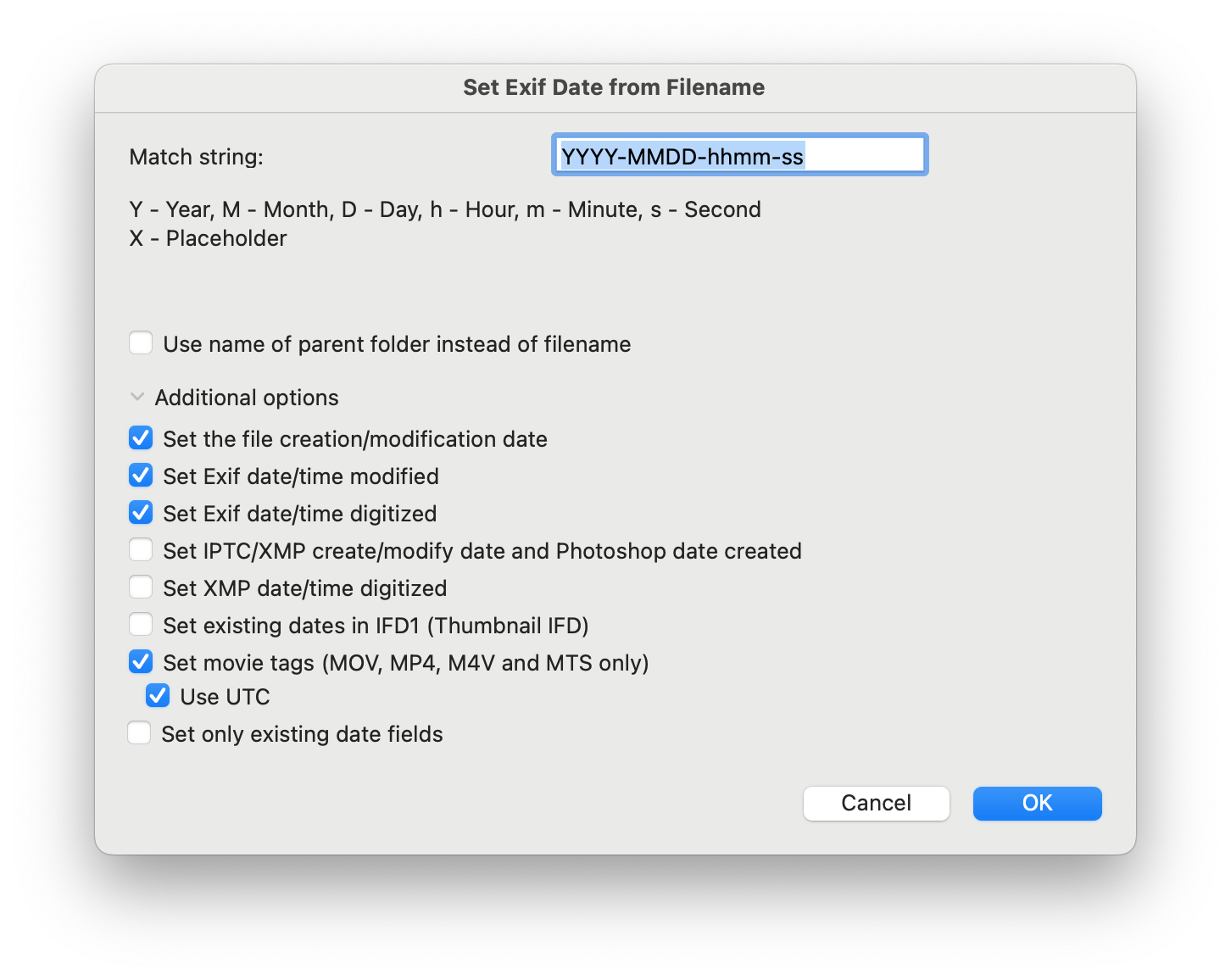


To copy filenames to image metadata dates can be done in exiftool:


exiftool -m -overwrite_original -ext jpg -ext heic -ext png -ext webp '-AllDates<FileName' '-FileCreateDate<FileName' '-FileModifyDate<FileName' .


To copy filenames to movie metadata dates can be done in exiftool:


exiftool -m -overwrite_original -ext mp4 -ext m4v -ext mov -wm w -api LargeFileSupport=1 -api QuickTimeUTC=1 '-AllDates<FileName' '-Track*Date<FileName' '-Media*Date<FileName' '-Keys:CreationDate<FileName' '-FileCreateDate<FileName' '-FileModifyDate<FileName' .



Aug 29, 2024 7:28 AM in response to Burgundian_NYC

On a Mac I use the app Photos Workbench ($30) to add a Title to my pictures. You have lots of options-- this is what I use:

You can include the filename if you like-- lots of options.


On a Mac you can sort by the Title field, but titles don't show in iOS. But once I sort them by title, when they sync to the iPhone they're in the same order. I copy the title, without the index, to the Caption filed so the information shows up in iOS and iPadOS.


You only list Apple TV as your device. I haven't tried to edit pictures on my Apple TV.

Aug 29, 2024 12:21 PM in response to Keith Barkley

This may not apply to the original poster, but some pictures, like scans, don't have a capture date that represents the date represented by the picture, so sorting by date doesn't work. The date changing routines, like Photos' "Adjust Date and Time..." or those in GraphicConverter, seem awkward when dates are kind of random.


So I'm using Titles for the dates. I can just type in a date under the picture, sometimes just "1937", or maybe "1988 10 31," and sort by title. I do wish there were a way to copy the Title into the Exif capture date.

This thread has been closed by the system or the community team. You may vote for any posts you find helpful, or search the Community for additional answers.

How to rename Photos with Apple Scripts?

Welcome to Apple Support Community
A forum where Apple customers help each other with their products. Get started with your Apple Account.