I'll go out on a limb here and say that it does look like a bug - any date input with milliseconds is converted to text and/or automatic. While there are custom cell formatting options to display milliseconds, I couldn't find a reliable way of making it work, which matches your finding.
I was able to construct a table that took the date field as you provided, used a number of text parsing functions (mainly TEXTBEFORE(), TEXTBETWEEN() and TEXTAFTER() ) to break out the components, then used a combination of DATE() and DURATION() to create a date field that could be used in other functions.
This table shows how I broke the components down:
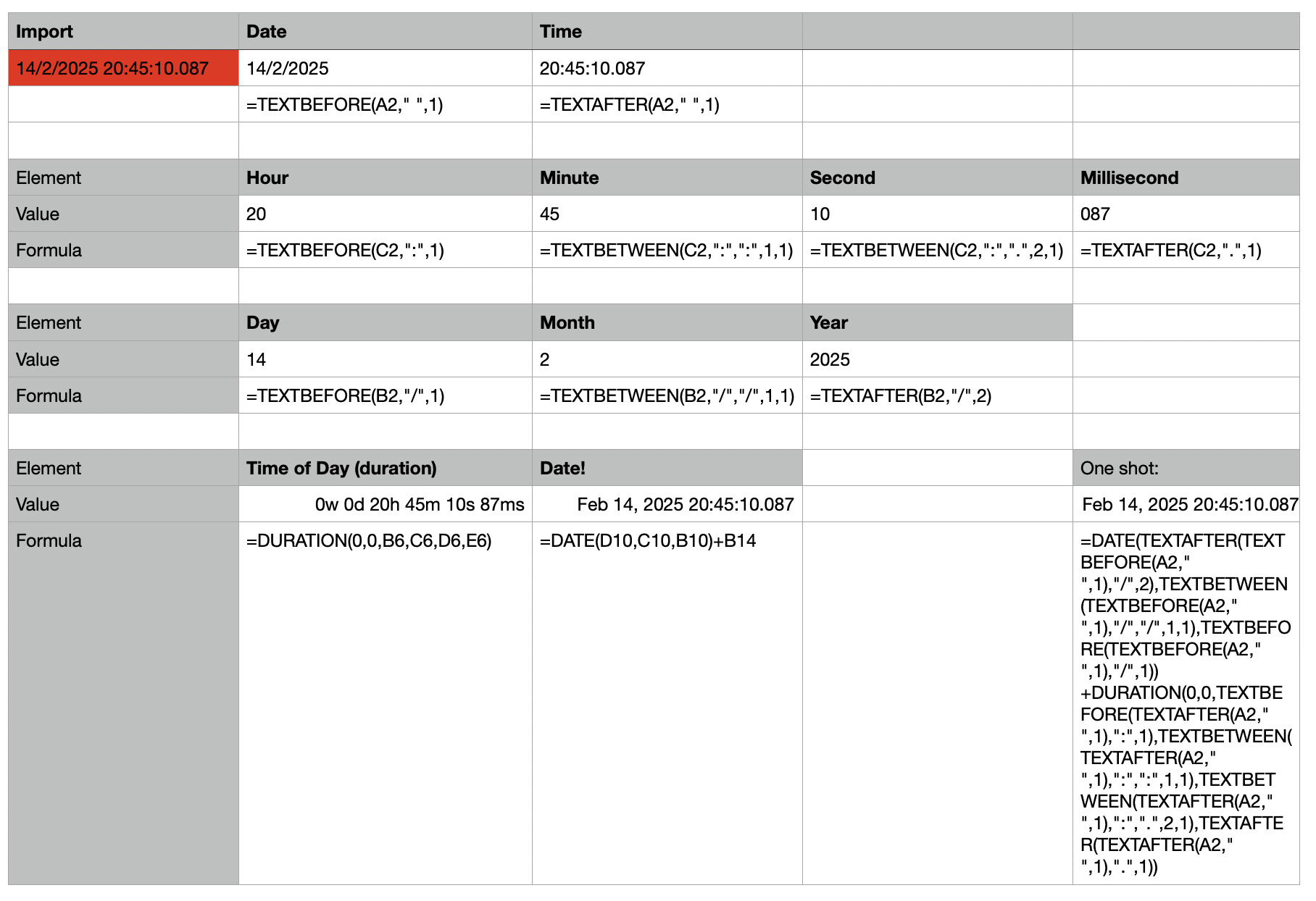
You can copy the individual components' formulas as-is, or incorporate them into one single function that looks like:
=DATE(TEXTAFTER(TEXTBEFORE(A2," ",1),"/",2),TEXTBETWEEN(TEXTBEFORE(A2," ",1),"/","/",1,1),TEXTBEFORE(TEXTBEFORE(A2," ",1),"/",1))+DURATION(0,0,TEXTBEFORE(TEXTAFTER(A2," ",1),":",1),TEXTBETWEEN(TEXTAFTER(A2," ",1),":",":",1,1),TEXTBETWEEN(TEXTAFTER(A2," ",1),":",".",2,1),TEXTAFTER(TEXTAFTER(A2," ",1),".",1))
Note that any text parsing is dependent on the input format. Since this is automated, there shouldn't be too much problem, but any changes in the input format may affect the results.