> Further, (for the moment) I will say that your formulas do not look like mine, as mine show no '$' entries. About that, I do not know what I do not know.
Ahh, that's how Numbers shows absolute vs. relative addresses. Let me explain...
'Normal' cell references use relative addresses, so they 'float' as you move around the spreadsheet - they are relative to the cell the formula is in.
Absolute cell references (that use the $) are absolute, and always refer to the same row and/or column.
For a single cell, it makes no difference.
If you set cell B2 to either:
=A2 (relative)
or
=$A$2 (absolute)
you get the exact same result in B2.
The difference comes when you use Fill to expand your table.
If you take cell B2 and fill down, all the cell references will update to maintain the same relative offset. Since B2 references A2 (one column to the left), the cells as they fill down will continue to reference 'one column to the left':
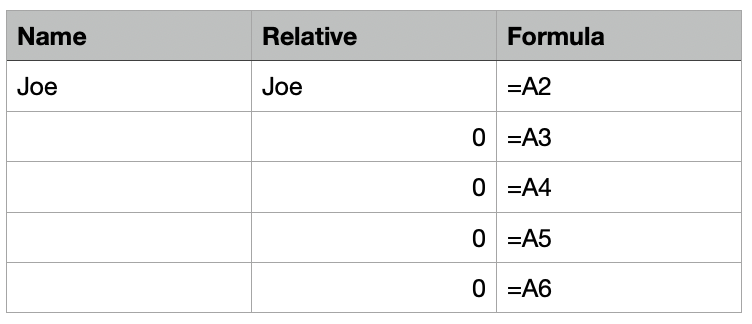
(here, column C is using FORMULATEXT() to show the formula in the adjacent B column)
Now you can see the cell B3 is referencing A3 (relative: one column to the left), and that's empty. Likewise for the rest of the column.
Now, this may be what you want, but sometimes you want the cell to always reference cell A2 and not update as you fill down. You could fill down, then go through and update all the references, but absolute references take care of that.
To set absolute references, click on the disclosure triangle alongside the cell reference in the formula editor. You'll see a little pop-up with options to 'Preserve Row' and 'Preserve Column':
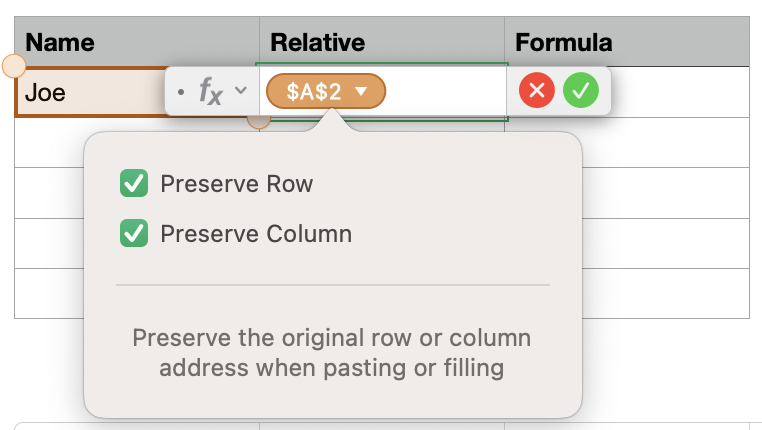
You can choose either row or column, or both, depending on what you want. In this case, I ALWAYS want to reference cell A2, so I preserve both:
Now as I fill B2 down the column, the cell references remain anchored to $A$2:
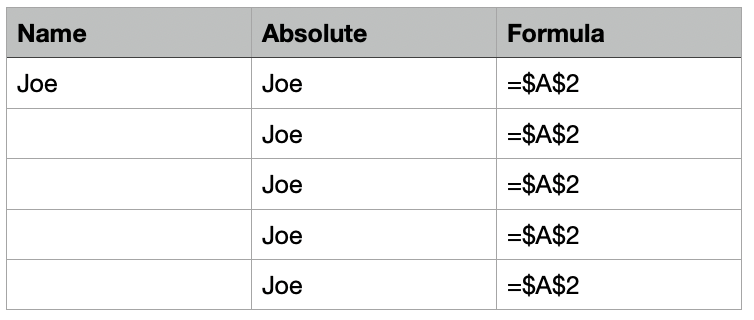
That's why I used Absolute references in your summary table:
=COUNTIF(INDIRECT(B$1&"::$A$3:$G$13"),$A2)
This formula added in B2 works great, for B2 but would break if I fill across...
For example, I use $A2 to extract the location name to search for. If this reference were simple A2, then it would update as it moved across the table and break the model.
Similarly, when I look for the month name from the table header, I always want to refer to row 1, not simply "one row above", hence the B$1... as I fill the table, the column B will update, but the $1 will remain fixed.
(Technically, I didn't have to add absolute references in the "::$A$3:$G$13" where "::A3:G13" would have sufficed, since this is just a text string at this point, and not actually a reference, so Numbers wouldn't update it and it would stay the same, but it's a good habit to get into when dealing with specific cells/locations on the table.)
An even clearer example would if you have a table for rates - hourly pay, tax rates, etc. and a separate cost sheet. Let's say I have a Rates table:
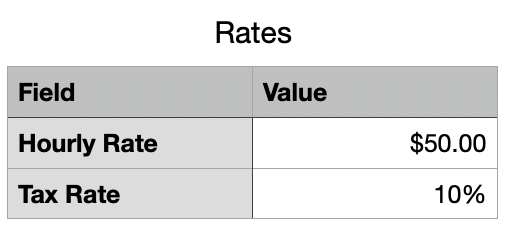
and a cost sheet:
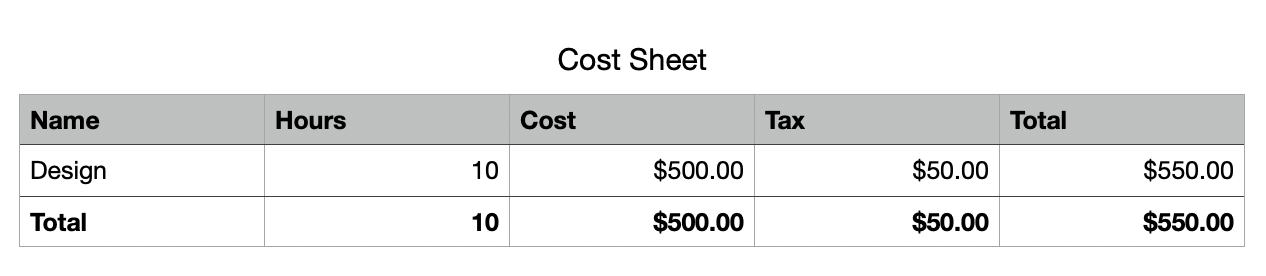
If the cost sheet uses relative addressing, then the Design Cost will correctly reference Rates::B2
But as I add additional costs in additional rows, the relative addressing app update to the same relative offset, and go haywire:
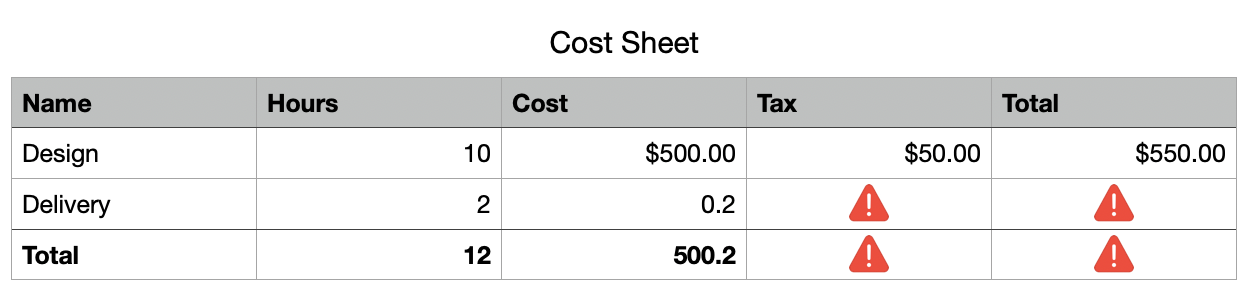
Now, delivery cost is trying to reference Rates::C2 and the tax is broken, trying to reference a non-existent tax cell.
Instead, these formulas should use absolute addressing, so they always go to the rate and tax cells:
By changing cell C2 to:
=B2 * Rates::$B$2
it always references the hourly rate cell and the rest of the table just works:
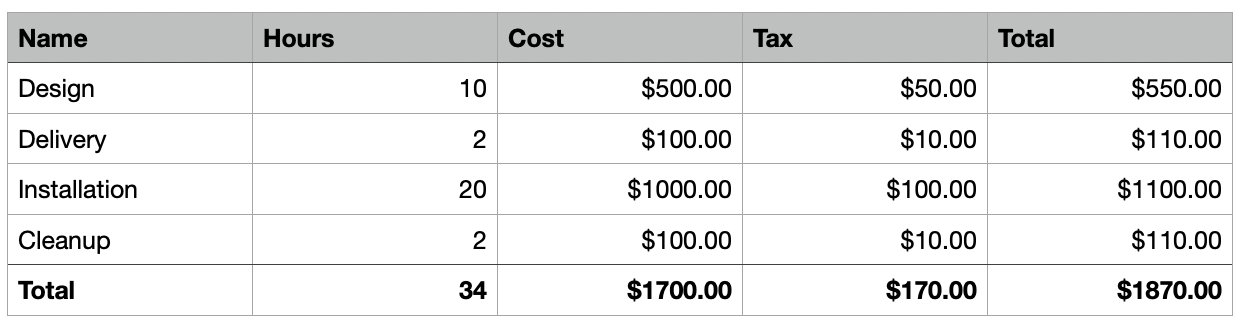
The final note is that Numbers can optionally show column references such as B2, or can substitute labels based on the row and column headers. This is set in Numbers -> Settings -> Use header names as labels.
This setting could change the display from "Rates:$B$2" to "$Value $Hourly Rate" (based on the header columns in the Rates table). The principle of absolute vs. relative addressing still stands, though.
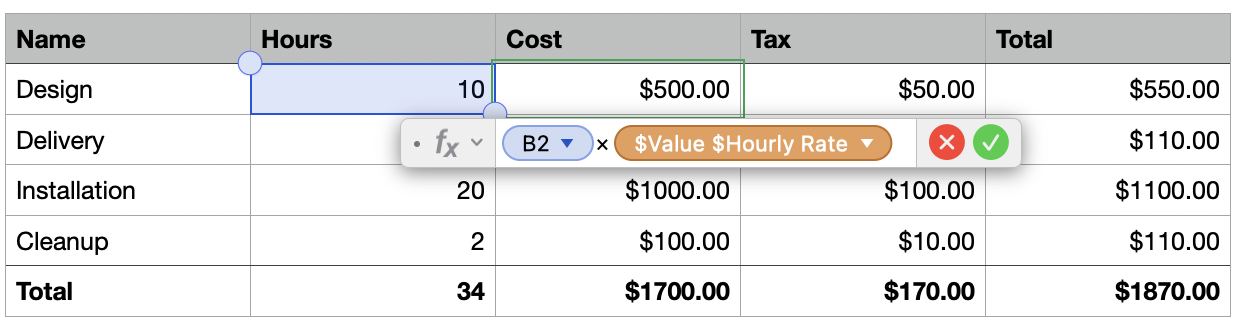
Personally, I flip between using header names and direct references. Can't quite decide which I prefer more.