Yep! Just like that! You will be prompted to use your default card, but you can switch by tapping the cards below. This is how it will look after clicking the side button twice: 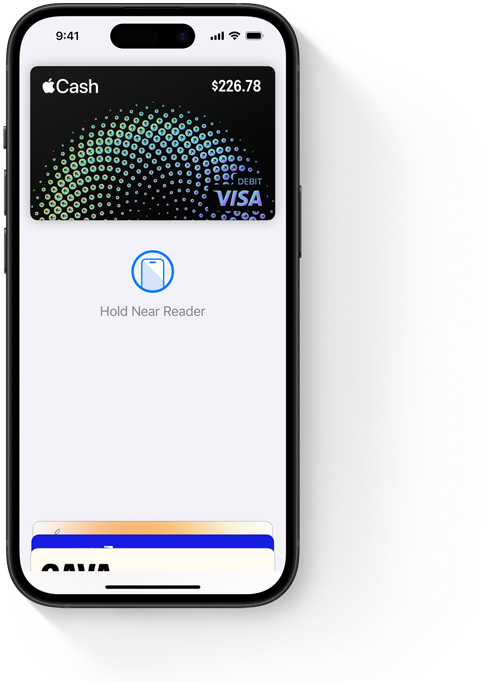
You’re also easily able to set your default card, and this will show up at the top, shown as Apple Cash in the previous image.
To do this:
- On your device, open Wallet & Apple Pay settings.
- On your Mac with Touch ID, go to System Settings (or System Preferences) > Wallet & Apple Pay.
- On your iPad or Vision Pro, go to Settings > Wallet & Apple Pay.
2. Select a new default card.
- On your Mac with Touch ID, choose a card from the menu.
- On your iPad or Vision Pro, scroll down to Transaction Defaults, then tap Default Card and choose a card.