Apple TV “Confirm with Apple Device” not working

Every time I download an app or try to rent a movie on mg Apple TV, I’m presented the option to either “Confirm with Apple Device” or “Confirm with Password” — but I never get the prompt on my iPhone or Apple Watch.


I have the latest iOS and watchOS installed. I think it’s must be a bug related to having 2 Apple IDs — from the early days, I have one Apple ID for apps/store purchases, and another ID for iCloud. I confirmed that both are signed into their respective places in my Apple TV’s settings under “Users and Accounts” — it just doesn’t work!


Anyone else having this problem? Has anyone found a solution?

Apple TV (4th generation)

Posted on Sep 29, 2022 7:43 PM

Reply
Question marked as Top-ranking reply

Posted on Oct 2, 2022 6:33 AM

Hi ApplUser1,


Thanks for the additional information, we appreciate it.


The purchase verification prompt is related to the Apple ID signed in at Settings > Your name.

However, with the actual purchase being made with a different Apple ID, this is probably why you aren't getting the security prompt.

Two-factor authentication for Apple ID - Apple Support


Since you've started using two Apple IDs awhile ago, this issue may be related to the fact that the Apple ID security function has advanced over the years, such as with two-factor authentication.

Manage your Apple ID


We should only be using one Apple ID for seamless function for all security actions. The thing is, you can not merge Apple IDs, so switching to one Apple ID would need some additional preparation. You can follow the steps in the below article to archive the data kept in iCloud with your other Apple ID:

Archive or make copies of the information you store in iCloud - Apple Support


Then sign out of the "iCloud" Apple ID and sign in with the "purchases" Apple ID. You may be asked if you want to merge the iCloud data, at this point you would say yes.

Sign in with your Apple ID - Apple Support


You can always sign in with the iCloud Apple ID at the iCloud website to view the data available there.

Sign in and use iCloud.com - Apple Support

Sign in to iCloud.com
1. Go to iCloud.com, then sign in with your Apple ID.
2. If you’re already signed in to your device with your Apple ID and your device has Touch ID or Face ID, you can use it to sign in to iCloud.com.
If you set up two-factor authentication or two-step verification, follow the onscreen instructions to verify your identity by entering a code sent to a trusted device.

We hope this helps to explain why this is happening. For additional assistance with managing your Apple ID, you'll want to reach out to Apple Support.

Apple Support


Take care!


Similar questions

5 replies
Question marked as Top-ranking reply

Oct 2, 2022 6:33 AM in response to ApplUser1

Hi ApplUser1,


Thanks for the additional information, we appreciate it.


The purchase verification prompt is related to the Apple ID signed in at Settings > Your name.

However, with the actual purchase being made with a different Apple ID, this is probably why you aren't getting the security prompt.

Two-factor authentication for Apple ID - Apple Support


Since you've started using two Apple IDs awhile ago, this issue may be related to the fact that the Apple ID security function has advanced over the years, such as with two-factor authentication.

Manage your Apple ID


We should only be using one Apple ID for seamless function for all security actions. The thing is, you can not merge Apple IDs, so switching to one Apple ID would need some additional preparation. You can follow the steps in the below article to archive the data kept in iCloud with your other Apple ID:

Archive or make copies of the information you store in iCloud - Apple Support


Then sign out of the "iCloud" Apple ID and sign in with the "purchases" Apple ID. You may be asked if you want to merge the iCloud data, at this point you would say yes.

Sign in with your Apple ID - Apple Support


You can always sign in with the iCloud Apple ID at the iCloud website to view the data available there.

Sign in and use iCloud.com - Apple Support

Sign in to iCloud.com
1. Go to iCloud.com, then sign in with your Apple ID.
2. If you’re already signed in to your device with your Apple ID and your device has Touch ID or Face ID, you can use it to sign in to iCloud.com.
If you set up two-factor authentication or two-step verification, follow the onscreen instructions to verify your identity by entering a code sent to a trusted device.

We hope this helps to explain why this is happening. For additional assistance with managing your Apple ID, you'll want to reach out to Apple Support.

Apple Support


Take care!


Oct 1, 2022 4:06 PM in response to ApplUser1

Greetings, ApplUser1. 


If you are not receiving the prompt to confirm your movie rental, make sure you are signed into the correct Apple ID on both your Apple TV and iPhone. This way, you can be sure that you’ll receive a prompt as expected. Learn how to sign in here: Sign in with your Apple ID


Should we have an incorrect understanding of the issue, consider offering more detail to help the community guide you to a resolution. 


  • Which device and OS are you using?
  • Have you ever been able to rent a movie?
  • Can you purchase other content?


We hope this helps to further isolate and resolve the issue to get movie rentals responding normally when asked.


Best wishes. 

Oct 2, 2022 8:48 AM in response to mingoslkd

Thank you mingoslkd — that’s what I was afraid of! I appreciate the detail and help links.


It’s a shame Apple hasn’t automated the process of merging Apple IDs — OR at minimum they should fully support the dual Apple ID system they created back in the early 2000s when MobileMe and iTunes were different accounts!


As far as the purchase confirmation issue I’m having, Apple TV should “just work” with dual Apple IDs. It seems like a tvOS bug. As long as Apple continues to allow a different ID for purchases, they should fully support purchase authentication and any other missing functionality.


I’ve been avoiding the hassle of "manually merging” my accounts into the Apple ID that I use for purchases. I’ve hoped Apple would announce merge tool someday.


Would “Family Sharing” be a viable option?


My iCloud account has more than 1.5 TB of photos, videos, documents, backups & messages using my original @me.com username. I can’t imagine moving all of that to another Apple ID without any problems.


My Media & Purchases account uses @gmail.com username and has all the apps, movies & shows I’ve purchased since 2006 along with my subscriptions to Apple One and a few other non-Apple subscriptions.


I’m thinking if I create a “family” with the 2 IDs. Then, I could just start using the @me.com account as my only Apple ID and share all of the old purchases. I’d cancel Apple One and other subscriptions on the @gmail account and start it on the @me.com account. I’d made all future purchases on the @me.com account.


Any thoughts? Concerns?

Oct 2, 2022 9:07 AM in response to ApplUser1

Hey ApplUser1.


Family Sharing could be a viable option for some content. Check out a detailed list of what can and what cannot be shared with members of your Family Sharing group in What types of content can I share with my family?


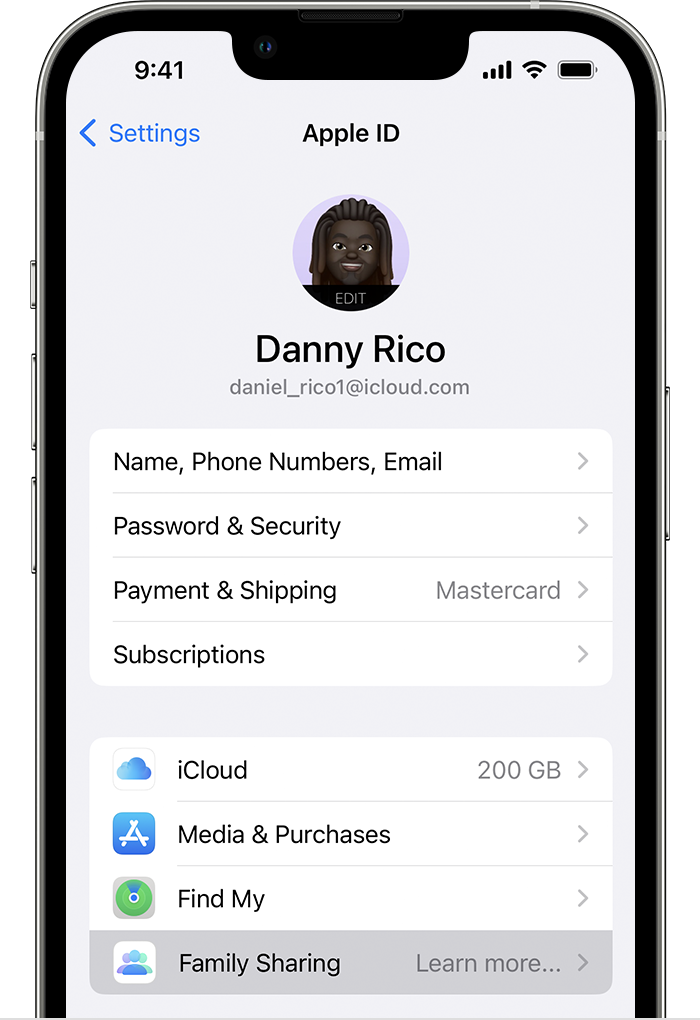
If you decide to give it a whirl, these are the steps to start a family group on iPhone as explained in Set up Family Sharing


" On your iPhone, iPad, or iPod touch


  1. Go to Settings.
  2. Tap your name.
  3. Tap Family Sharing, then tap Set Up Your Family.
  4. Family Sharing is listed in the second section, below Find My.

  5. Follow the onscreen instructions to set up your family and invite your family members."


Further down on that same page, the Invite people to join your family section explains how you can add users to the Family Sharing group. Finally, once you've been added, you can follow the steps in How to share purchases with your family so that compatible content is shared to all members:


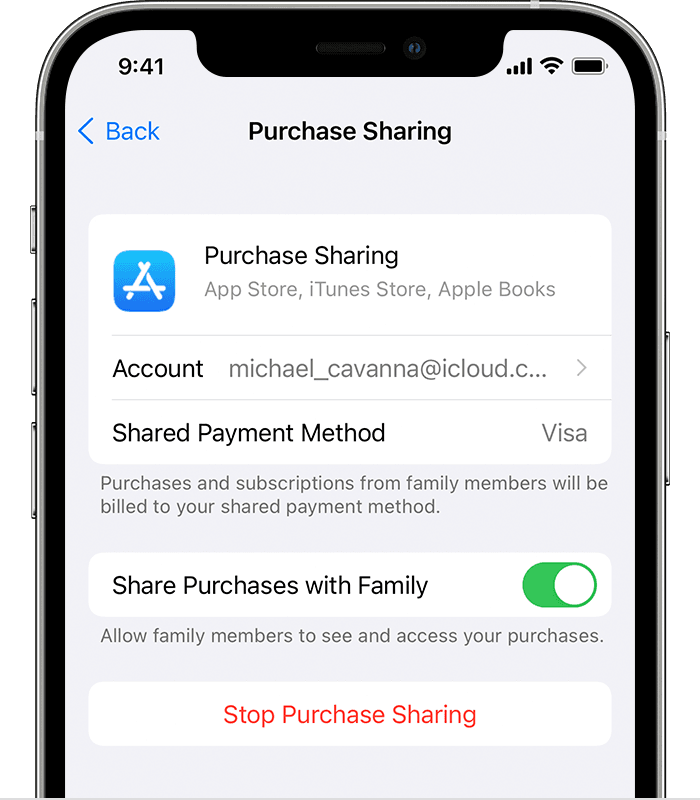
"Use your iPhone, iPad, or iPod touch to turn on purchase sharing


  1. If you haven't set up Family Sharing yet, set up Family Sharing.
  2. Open the Settings app.
  3. Tap your name, then tap Family Sharing.
  4. Tap Purchase Sharing.
  5. Tap Continue and follow the onscreen instructions.
  6. To see which payment method will be billed, tap Purchase Sharing again and look at the Shared Payment Method information.
  7. iPhone showing that a Visa card is the shared payment method."


Take care!

Oct 1, 2022 9:54 PM in response to JessS19

I’m signed into my Apple IDs on the following:


iPhone 14 Pro Max — iOS 16.0.2

Apple TV (4th Gen) — tvOS 15.6

Watch Series 7 — watchOS 9.0


All devices are signed into the same Apple ID for iCloud. I use a different Apple ID for store purchases and am signed into that Apple ID in the store settings on both iPhone and TV.


Yes, I am able to rent movies and make other purchases on the Apple TV — but only by manually entering my password. The prompt to approve has never shown up on my iPhone or Apple Watch.


For what it’s worth, the remote app does work on both my iPhone and Watch. Just not the purchase confirmation prompt… and that seems like a convenient feature.


This thread has been closed by the system or the community team. You may vote for any posts you find helpful, or search the Community for additional answers.

Apple TV “Confirm with Apple Device” not working

Welcome to Apple Support Community
A forum where Apple customers help each other with their products. Get started with your Apple Account.