
HP LaserJet Pro MFP M281cdw printing issues - jobs disappear from queue without printing

Okay, I've searched forums both on here as well as on HP with no resolution.


I've had this printer for about 3 years and it has worked fine. I am on a MacBook Pro 14" M1 Pro and just recently updated to Ventura (but was having this problem before I updated - was hoping the update would solve the problem).


I've had this printer both networked over RJ45 as well as wirelessly networked. I can print test pages and Airprint from my phone. I can also right click to select text or pictures and print them out. However, when trying to print from Preview or print a webpage, the printer will briefly spool up and the job will show in the queue, but then nothing happens and the job disappears. I have checked the log and the printer thinks it has printed.


I have tried resetting the printer default, unplugging the printer for a reset, restarting the computer, resetting my printers, deleting and readding the printer. Nothing has worked. I can connect to the printer if I put in the IP address, but that severely limits functionality.


Any help would be appreciated. I spoke briefly with tech support from someone with Costco concierge services and he was absolutely no help. Unfortunately my next step is probably to contact my credit card for extended warranty and have to get a new printer, which seems such a waste.

MacBook Pro

Posted on Dec 10, 2022 10:11 AM

Reply

Similar questions

1 reply

Dec 12, 2022 5:55 PM in response to ejkim

Hello ejkim,


We'd first confirm it's a supported AirPrint printer: About AirPrint - Apple Support


For printing issues, we'd recommend taking these related steps: Solve printing problems on Mac - Apple Support


Solve printing problems on Mac

If you’re having trouble printing, first try these suggestions:

- If your printer is connected to your Mac, make sure the printer cable is firmly connected, and the printer is plugged into an electrical outlet, and turned on.

- If the printer is on the network, make sure your Mac and the printer are still on the same network, the printer is turned on, and the network isn’t experiencing problems. If the network has multiple printers, check which printer you chose—it may be different from the one you think you chose.

- If you use a shared printer connected to another Mac, make sure the Mac has macOS 10.5 or later installed, isn’t in sleep, and has sharing turned on. See Share your printer.

- If your printer is connected to your computer’s USB port, check the System Report to see that it has an active connection. Press and hold Option, then choose Apple menu  > System Information. If the printer’s name appears in the hardware list but the printer doesn’t work, review the printer’s documentation for further troubleshooting information.
If you still can’t print, see the additional troubleshooting information below.

Try to resume printing

1. On your Mac, click the printer’s icon in the Dock to open the printer’s queue window.

2. Do any of the following:

- If you see the Resume button in the toolbar, the printer is paused. Click the Resume button.

- If another job is holding up the queue because of an error, select that job, then click the small Delete Job button on the right (marked with an X).

- If an individual print job in the list is paused, select it, then click the Resume Job button on the right (marked with a curved arrow).

If you don’t see your print job in the printer’s queue, you may have printed to a different printer. Check the queue windows for other printers, or try printing again, making sure you choose the correct printer.

To check the print queue for other printers, choose Apple menu  > System Settings, then click Printers & Scanners  in the sidebar. Click the printer in the Printers list on the right, then click the Print Queue button.
Try to print from another app

- Try printing from another app, such as TextEdit. If the problem occurs only in one app, review that app’s documentation for further troubleshooting information.

Turn off Print Dialog Extensions

Some printer software and apps use Print Dialog Extensions (PDEs) to make custom print options and dialogs available when you print. If you experience printing problems with software that uses PDEs, you can turn the use of PDEs off for that printer.
1. Choose Apple menu  > System Settings, then click Printers & Scanners  in the sidebar. (You may have to scroll down.)
2. Click the printer in the Printers list on the right, click the Options & Supplies button, select the Use Generic Printer Features checkbox, then click OK.

Check the printer

Go to the printer and check the following:
- It’s turned on and is displaying normal status lights.
- It has paper, and the paper isn’t jammed.
- It has enough ink or toner.
- Its cables are properly connected.

Add the printer again to create a new printer queue
1. On your Mac, if the printer is on the network, choose Apple menu  > System Settings, then click Printers & Scanners  in the sidebar. (You may have to scroll down.)
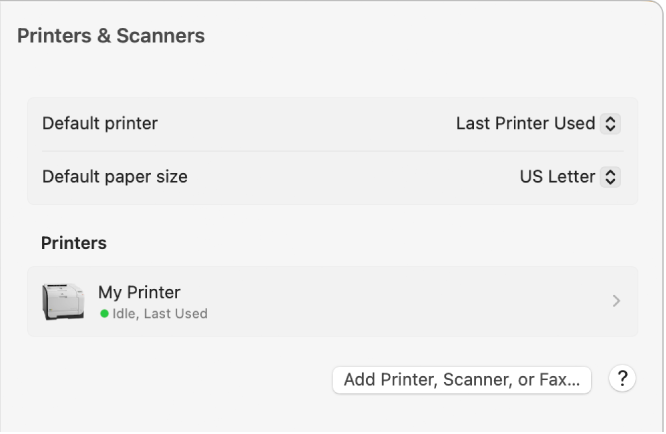
The Printers & Scanners dialog showing options for setting up a printer and a printers list with an Add Printer, Scanner, or Fax button.
2. Add the printer to your list of available printers: Click the Add Printer, Scanner, or Fax button on the right. A dialog appears listing printers on your local network. It may take a minute or two for your printer to appear. 

If your printer still doesn’t appear in the list, try adding the printer by its IP address (see below).

If you can print to the newly added printer queue, delete the old printer queue.
If you can’t add the printer because it doesn’t appear in the list of available printers, it may be turned off, or your Mac may be on a different network now. If the printer was shared by another user, the user may have stopped sharing it, or the user’s Mac may be offline. If you don’t manage the printer, ask the person who does for help.

Make sure you have the latest software

Make sure you have the correct version of your printer’s software (also called its printer driver). If you’re using a printer that another user is sharing, make sure you’re both using the same version of the printer software.

1. On your Mac, to find out which version of printer software you’re using, choose Apple menu  > System Settings, then click Printers & Scanners  in the sidebar.

2. Click the printer in the Printers list on the right, click Options & Supplies, then check the Driver version.

Contact with the printer manufacturer to see if you have the latest driver version.

If you’re using a network printer or a printer connected to your Mac, make sure you have the latest version of the software for the printer. If you still have problems, try a different version of printer software.

If you’re using an AirPrint-enabled printer, check with your printer’s manufacturer to see if any updates are available for your printer model.

If none of the previous solutions work, the printer’s queue may be corrupted. Try deleting it and setting up your printer again.

If you still can’t print, reset the printing system.


As mentioned in the end, if those steps don't help, then try to reset the printing system with these steps: Reset the printing system on your Mac to solve a problem - Apple Support


Should the issue continue to occur, then it would be best to contact Apple Support directly: Contact - Official Apple Support (Unless the printer doesn't support AirPrint, in that case, you'll need to get a supported AirPrint printer.)


They'll need to take it from here.


Wishing you well, take care.

This thread has been closed by the system or the community team. You may vote for any posts you find helpful, or search the Community for additional answers.

HP LaserJet Pro MFP M281cdw printing issues - jobs disappear from queue without printing

Welcome to Apple Support Community
A forum where Apple customers help each other with their products. Get started with your Apple Account.