Pop-up menus only allow single selections - you can't choose multiple items from a single popup in a single cell.
If you can get past that, you can use REGEX to match the cell "apple, orange, banana" to separate values.
For example, given the following (I put the Fruits into a separate table so they don't get in the way of the main sheet):
(Note: this is based on a Numbers spreadsheet, but should translate to Google Sheets easily enough)
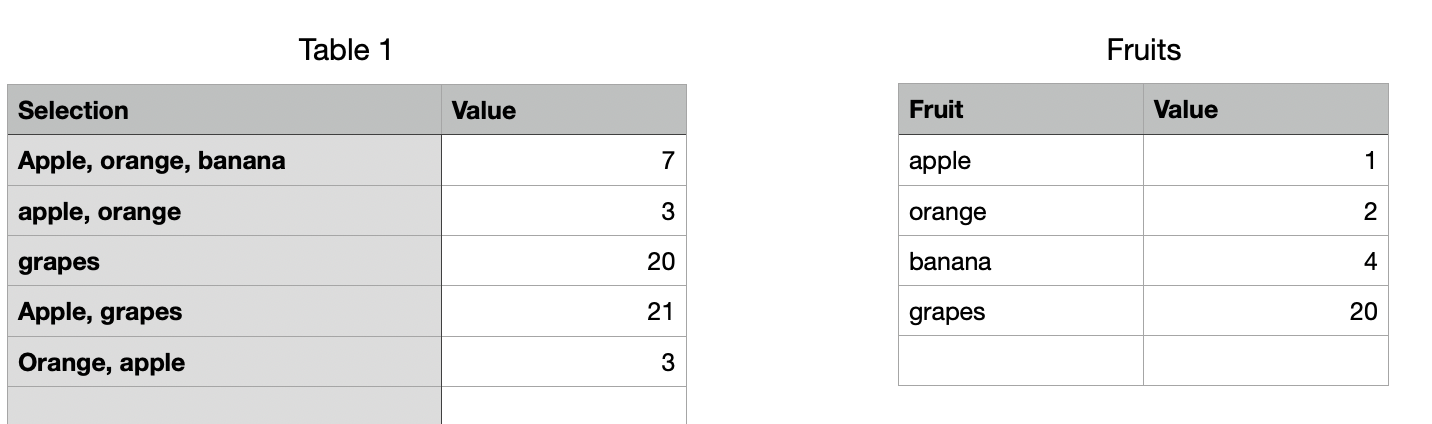
First, I used SUBSTITUTE() to replace the comma/spaces in the cell with "|", a logical OR separator for regular expressions:
=SUBSTITUTE($A2,", ","|")
This (internally) results in a string that looks like "apple|orange|banana". This can be used as a REGEX() (regular expression) in a SUMIF statement. In this case, cell B2 in the main table looks like:
=SUMIF(Fruits:A,REGEX(SUBSTITUTE($A2,", ","|"),FALSE),Fruits::B)
This checks all the values in column A on the Fruits table against the regular expression, for each match, it adds the corresponding value in the Value (B) column of the Fruits table.
There are some caveats here - it is very dependent on the format of the string... "apple,orange" wouldn't work, for example, although a more complex REGEX() and/or SUBSTITION() could handle that. it also won't double-up fruits (e.g. "apple, apple" would be counted as 1, not 2). Hopefully it's enough to get you started.